Saturday, October 31, 2009

2 ways to send anonymouse email

Do you want to send an email anonymously because, for example, you fear your views might not be appreciated by your boss? There are various web based anonymous email service providers available in the internet. From where you can send anonymous email. So am posting here some of the best sites which helps you to send anonymous email.
1. SendAnonymousEmail – Is a free service which allow you to send unlimitted anonymous email.

2. deadfake - a site that lets you send free fake emails to anyone you like. There’s no signup, no registration, no fuss. You can even send fake emails with rich text; fonts, colours, etc

Friday, October 30, 2009

Motorola DROID official coming November 6th

Motorola DROID official coming November 6th


Most of the smartphone’s features are now confirmed, including the 3.7 inch, 480 x 854 pixels capacitive touchscreen display, EV-DO Rev A connectivity, Wi-Fi, GPS, D1 video playback, stereo Bluetooth, 3.5mm headset jack, Flash 10 ready HTML browser, 5MP autofocus camera with dual-LED flash, 16GB of storage space, MicroSD card support, and 1400 mAh battery.


How to Upgrade Windows Vista to Windows 7

How to Upgrade Window Vista to Windows 7

Depending on your hardware and your current edition of Windows Vista, you can use the Upgrade option during Windows 7 installation to upgrade from Windows Vista to a corresponding or higher edition of Windows 7. Upgrading is the most convenient way to get Windows 7 on your computer, because it keeps your files, settings, and programs from Windows Vista in place.

There are 2 ways to Upgrade Windows Vista to Windows 7.

1. Upgrade Installation
2. Custom ( Advanced ) Installation.

So here we Cover the Both of them, but before you have to backup your Hardisk. You’ll need to move your files off of your PC before you install Windows 7. To make this easier, we recommend a free download called Windows Easy Transfer, which will require an external hard disk. They’re readily available at electronics and office supply stores, and they provide an easy way to add additional storage space to your computer.

32-bit or 64-bit: Which version of Windows 7 to install?

Both 32-bit and 64-bit installation discs are included in the Windows 7 package. 64-bit operating systems can handle large amounts of memory—typically 4 gigabytes (GB) of random access memory (RAM) or more—more efficiently than 32-bit operating systems. However, not all computers are 64-bit capable.

To find out which Windows 7 installation disc you can use, click the Start button, right-click Computer, and then click Properties.

* Next to System type you should see either “32-bit Operating System” or “64-bit Operating System.” If you see “32-bit Operating System” listed, then you’re running the 32-bit version of Windows Vista.

* If “64-bit Operating System” is listed next to System type, then you’re running the 64-bit version of Windows Vista and can run the 64-bit version of Windows 7.

Make sure that your programs and devices will work with Windows 7

Since your computer is running Windows Vista, it meets the system requirements to run Windows 7. You should still download and run the free Windows 7 Upgrade Advisor. It helps find potential compatibility issues with your computer’s hardware, devices, or programs that might affect installing Windows 7, and gives recommendations on what to do before you upgrade to improve your PC’s compatibility with Windows 7.

Download and install Windows 7 Upgrade Advisor

Follow the steps below to download the Windows 7 Upgrade Advisor.

1. Go to the Windows 7 Upgrade Advisor webpage.
2. Click Download the Windows 7 Upgrade Advisor.
3. Click Download, and then save the installation file to your PC.
4. Double-click the installation file saved to your PC.
5. If you agree to the license terms, click Install.
6. Click Close.

If you see a pre-selected check box, clicking Close will run Windows 7 Upgrade Advisor.

Run Windows 7 Upgrade Advisor

1. If Windows 7 Upgrade Advisor isn’t already running, double-click the Windows 7 Upgrade Advisor shortcut on your PC’s desktop.

2. In the security warning dialog box, click Yes.

3. Click Start check. The Windows 7 Upgrade Advisor will scan your PC’s hardware, devices, and installed software. This might take a few minutes. When finished, it will provide you with a compatibility report that you can print or save for your reference.

4. Read the report carefully, and make note of any issues that the Upgrade Advisor finds and what the recommended steps are to fix these issues.

5. If you want to save the report and print or refer to it later, click Save Report, type a name in the File Name box, and then click Save.

6. Click Close.

You can scan your PC more than once. We recommend running the Windows 7 Upgrade Advisor again after taking any of the recommended steps or making any changes to your PC’s hardware, devices, or installed software before upgrading to Windows 7. Be sure to save your updated report.

Now Here is the Main Step. As we mention Above you can Upgrade windows Vista with 2 steps Upgrade Installation and Custom ( Advanced ) Installation. So here is the descriptions:-

1. Upgrade Installation

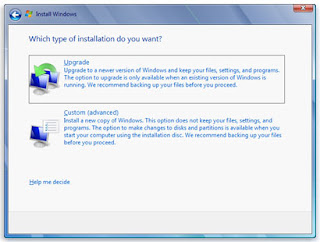
When you upgrade to Windows 7, you keep your files, settings, and programs from Windows Vista.
1. Turn on your PC.

2. After Windows Vista has started, do one of the following:

* If you purchased and downloaded Windows 7 online, open the installation file. Purchasing and downloading Windows 7 online is the easiest way to install Windows 7 on a netbook.
* If you have a Windows 7 installation disc, insert the disc into your computer. Setup should start automatically. If it doesn’t, click the Start button, click Computer, double-click your DVD drive to open the Windows 7 installation disc, and then double-click setup.exe.

3. On the Install Windows page, click Install now.

4. On the Get important updates for installation page, we recommend getting the latest updates to help ensure a successful installation, and to help protect your computer against security threats. You computer will need to be connected to the Internet during Windows 7 installation to get these updates.

5. On the Please read the license terms page, if you accept the license terms, click I accept the license terms, and then click Next.

6. On the Which type of installation do you want? page, click Upgrade.
You might see a compatibility report.

7. Continue to follow the instructions to finish installing Windows 7.

2. Custom ( Advanced ) Installation.

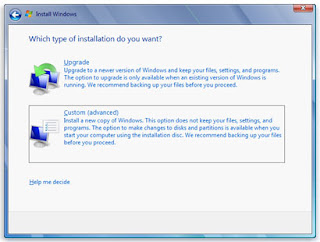
When you choose the Custom option during installation, you install a new copy of Windows on your PC.
1. With your computer on and Windows Vista running, do one of the following:

* If you have a Windows 7 installation disc, insert the disc into your computer. Setup should start automatically. If it doesn’t, click the Start button, click Computer, open the Windows 7 installation disc on your DVD drive, and then double-click setup.exe.

* If you purchased and downloaded Windows 7 online, open the installation file.

2. On the Install Windows page, click Install now.

3. On the Get important updates for installation page, we recommend getting the latest updates to help ensure a successful installation, and to help protect your computer against security threats. Your computer will need to be connected to the Internet during Windows 7 installation to get these updates.

4. On the Please read the license terms page, if you accept the license terms, click I accept the license terms, and then click Next.

5. On the Which type of installation do you want? page, click Custom.

6. Choose the partition containing Windows Vista (this is often the computer’s C drive), and then click Next. (Do not select your external USB hard drive.)

7. In the Windows.old dialog box, click OK.

8. Continue to follow the instructions to finish installing Windows 7, including naming your computer and setting up an initial user account. You can use the same names that you used in Windows Vista, or choose new ones.

Price Details of Windows 7 in India


Microsoft announced the prices for the Windows 7 operating system, which will definitely cost the consumers less when compared to its Vista counterpart. The prices are apparently 40% lower than the US prices.


Here are the Price Details of Windows 7 in India

Windows 7 Home Basic – Rs. 5,899
Windows 7 Home Premium – Rs. 6,799
Windows 7 Professional – Rs. 11,199
Windows 7 Ultimate – Rs. 11,799

Thursday, October 29, 2009

How to add and remove Windows Vista features

How to add and remove Windows Vista features

One of the most common problems reported lately by users of Vista is not knowing how to add or remove certain features of Windows Vista. These tips will help them to customize the Windows Vista features the way they want to. Even though the procedure is generally similar to Windows XP, in Windows Vista there is a key difference.

In Windows XP and earlier versions, to turn a feature off you had to uninstall it completely from your computer. In Windows Vista the features remain stored on your hard disk, so you can turn them back on if you want to. This can be a good thing as you don't have to insert the Windows Vista DVD each time your want to turn on a features. Also, this is not so great because you won't be able to save any disk space by removing the features you don't need. It seems that, in this case, Microsoft traded ease of use for additional hard disk space.

Turning on or off Windows Vista features can be done from Programs and Features. One of the ways to find it is to search for the word programs in the Start Menu search box.

In the Programs and Features window, click on Turn Windows features on or off. If UAC (User Account Control) is enabled you might need to make an additional confirmation.


Now you will see a list with all the available Windows Vista features. Some features are grouped together in folders, and some folders contain subfolders with additional features. To view the contents of a folder, double-click it or click on the "+" sign.

If a check box of a folder is partially checked or appears dark, then some of the items inside it are enabled and some are disabled. If a feature is checked then it is enabled already. The features that are not checked are disabled.

For this tutorial, we will choose first to disable one of the Windows Ultimate Extras. As you can see in this screenshot, both the Windows DreamScene Preview and the final version are listed as installed. We will disable the Preview version as it is not needed anymore.

Also, we would like to disable the Windows Vista Games. So we scroll up to the Games folder and deselect it.

You can enable or disable any of the listed Windows Vista features. After you decided upon what to add or remove from Windows Vista, click on OK. Windows Vista will perform the appropriate actions.

Wait until the progress bar disappears. Then, Windows Vista might ask you to restart the computer so that the required changes will be implemented in the system.


Add/Remove Programs - nowhere to be found in Vista?

Add/Remove Programs - nowhere to be found in Vista?
 
Don't worry - we had the same problem when we launched Windows Vista for the first time. Add/Remove Programs is not missing - it was just renamed for some reason to Programs and Features and it is very easy to find, like always.

First, go to Control Panel. If you don't you use the Classic View you will see a section called Programs and beneath it there is the Uninstall a program option. Click on it and you arrived to the right place

If you are using the Classic View, you will find Programs and Features in the list of items that start with the letter "P".

Another option would be to type "add remove" in the search box and Windows Vista will return the shortcut to Programs and Features.


Wednesday, October 28, 2009

Improve start-up and shutdown times

Improve start-up and shutdown times

Tired of twiddling your thumbs or taking a coffee break while XP boots up or shuts down? These tweaks and hacks will speed up both for you.

1. Speed boot-up with boot defragments
The simplest way to speed boot-up is to do a boot defragment so that all the boot files are next to one another on your hard disk. By default, XP performs a boot defragment, but there's a chance that it's been turned off. Here's how to make sure it's turned on.

  1. Open the Registry Editor by typing regedit at a command prompt or the Run box.
  2. Go to HKEY_LOCAL_MACHINE\SOFTWARE\Microsoft\Dfrg\BootOptimizeFunction.
  3. Change the Enable string value to Y if it is not already set to Y.
  4. Exit the Registry and reboot.

The next time you reboot, you'll do a boot defragment.

2.Tweak your BIOS for faster start-ups
Each time you turn on your PC, it performs a set of BIOS start-up procedures before XP loads. Speed up those start-up procedures, and you'll speed up boot times.You change the start-up procedures by changing the BIOS settings with your system's built-in setup utility. How you run this utility varies from PC to PC, but you typically get to it by pressing the Delete, F1 or F10 keys during start-up. A menu of choices then appears. Here are the settings to tweak for faster start-ups:

3.Quick Power On Self Test (POST): With this option, your system runs an abbreviated POST rather than the normal, lengthy one. Turn it on.

4.Boot Up Floppy Seek: When was the last time you used a floppy, much less booted from it? If you're like most of the world, the answer is never. Disable this option. When it's enabled, your system spends a few extra seconds looking for your floppy drive.
Boot Delay: Some PCs let you delay booting after you turn on your PC so that your hard drive gets a chance to start spinning before boot-up. It's unlikely you need this boot delay, so turn it off. If you run into problems, however, you can turn it back on.

5.How not to speed up booting
There's a tip about speeding up XP boot times that's been circulating on the Web for years -- follow it and you'll most likely slow down your PC, not speed it up. The tip recommends that you delete all the files in your C:\WINDOWS\Prefetch directory on a regular basis. But in fact, doing that will lead to a more sluggish PC.
The reason? Windows uses C:\WINDOWS\Prefetch make your applications launch more quickly.Windows XP analyzes the files you use during start-up and the applications you launch, and it creates an index to their locations. Using the index, XP launches files and applications faster.
By emptying the directory, you are most likely slowing down how quickly those applications launch. And in my tests, I've found that after emptying the directory, it takes my PC a few seconds longer to get to my desktop after boot-up.

6.Disconnect dead network connections
Windows XP has a very useful feature that lets you map a network drive to your local PC. So, for example, if there's a drive on another PC on your network or on a network server that you frequently browse to, you can make it look to XP as if it's a local disk, such as the F: drive. That way, you can quickly get to the network drive instead of having to navigate through a complex maze of paths.
That's the good news. Here's the bad news: If any of those network drives is no longer alive, it can slow down your system. Every time you start XP, it tries to connect to all the network drives you've mapped. If the remote drive doesn't respond, XP waits to start and will try to connect again until it gives up.
In addition, when you use some programs, they'll try to make the connection as well, further slowing your system. The result? When you try to open a file on your local PC, you may have to wait several seconds.
Disconnecting dead network drives is simple. Right-click My Computer and choose Disconnect Network Drive. You'll see a screen like one pictured nearby, which lists all your network drives. Select any drives you want to disconnect, then click OK. Things should now speed up.

7.Remove extraneous start-up programs
You've most likely got many programs that load into your system on start-up. These programs do worse things than just slowing down start-up -- they can bog down your PC by constantly taking up RAM and CPU power. Unfortunately, in XP, there's no single place to go to find all those start-up programs and decide which ones to keep and which to kill.
That's where Mike Lin's Startup Control Panel applet comes in. It shows you all the programs and services that load on start-up, then lets you kill any you don't want to keep.
The program is multi tabbed, with one tab for every place where a program or service may be launched on start-up. Click each tab and examine the listings. Right-click any program you don't want to run, and select Disable so that it no longer runs.
If you're not sure what a particular program does and whether you need it, do a Google search on the program name or file name for more information. The process is laborious, to be sure, but what you gain in start-up speed is well worth your efforts.

8.Don't clear the paging file on shutdown
If shutting down XP takes too long, you can tell XP not to clear your paging file when it shuts down. The paging file stores temporary files and data, but when your system shuts down, that information stays in the file.
Some people want the paging file cleared at shutdown because sensitive information such as unencrypted passwords sometimes ends up there. But if extreme security isn't a high priority, you can save yourself some time by not clearing it. (If you're on a corporate machine, check with IT before taking this step.)

9.To shut down XP without clearing your paging file:

  1. Open the Registry Editor by typing regedit at a command prompt or the Run box.
  2. Go to HKEY_LOCAL_MACHINE\SYSTEM\CurrentControlSet\Control\Session Manager\Memory Management.
  3. Look for the value ClearPageFileAtShutdown, and change it to 0.
  4. Exit the Registry and reboot.

From now on, your paging file won't be cleared, and shutdowns should be faster.

10.Make XP more secure
Windows XP's security tools are in serious need of upgrade. A prime example is the XP firewall. It has one very serious deficiency -- it doesn't block potentially dangerous outbound connections.
The solution: Get a free firewall that does that and more. Several are worth trying, but my favorite is Comodo Firewall Pro. It's the top free firewall rated by the independent Matousec testing site. In addition to offering inbound and outbound protection, it includes a Host Prevention System to stop malware from being installed in the first place.
XP doesn't include antivirus protection, so you'll of course need some kind of antivirus. Rather than using a bloated, big-name security suite stuffed with a firewall, backup software, identity protection and other modules, your better bet is to get an independent, lightweight antivirus program.
Two of the best are Avast Antivirus Home Edition and AVG Anti-Virus Free Edition. In addition to viruses, AVG protects against spyware, and Avast includes protection from spyware and rootkits -- but that extra protection won't weigh down your PC.
Both programs are free for home and non-commercial use, keep you safe, and take up little RAM and few system resources. What more do you need?

11.Modernize XP's look and feel
Face it, you may like XP, but it's looking very old and dated these days. It's in some very serious need of eye candy.
A great way to dress it up is with the ObjectDock from Stardock. It gives XP a Mac-like look with an animated dock that mimics the one in Mac OS X.
With it, you dock your favorite applications and folders at the bottom or side of the screen. It features a slick look, smooth animations, and much more visual appeal than XP.
The clunky old method of using Alt-Tab to switch between applications in XP could use some help. Yes, it will switch you -- but that's the extent of it.
You can power up Alt-Tab with TaskSwitchXP from NTWind Software. Use it, and whenever you press Alt-Tab, you'll be able to see previews of all your open windows. From here you can close and minimize applications and their groups as well.
Finally, give your XP desktop a useful sidebar like Vista's, with Google's Desktop Sidebar. It's packed with gadgets, such as a weather tracker, stock checker, and news reader, and there are many other free gadgets you can download for it as well. Yahoo Widgets similarly offers you a sidebar and plenty of free widgets.